This site obtains and uses access data, using cookies, In order to recognize the state of use and distribute advertisements. If you continue to the next page, you shall be deemed to have agreed to the settings and use of cookies. Please refer to the details for more information about the settings and use of cookies and opt-out.
The large parts tile set is arranged incorrectly. Posted by soony Created at Updated at
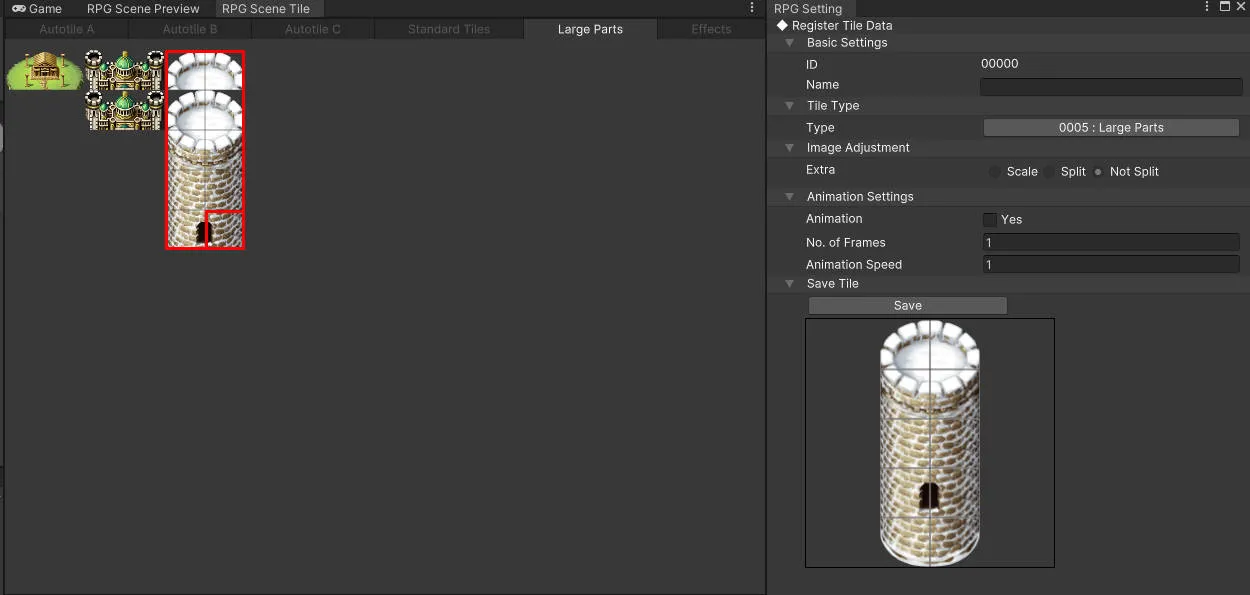
I want to save a large image from register tile data into the Large Parts Section, but after saving, the tile set is arranged incorrectly.
How can I fix this?
unity ver 2021Lts28
RMU ver 1.21
CommentsPosted by Baz Created at Updated at
Hello!
The sprite cell size of the large part needs to be divisible by 96 on the width and height. That tower for example can fit on a 96 x 288 sprite sheet and that will load correctly. When you click save it will warn you if the image is not divisible.
Posted by soony Created at
Thank you, Baz, for your suggestion. I opened the Tower image file directly and noticed transparent lines embedded in the image. I used an image editor to remove those transparent lines and adjusted the image size to be divisible by 96 evenly. This fixed the tile alignment issue.
However, making all these images usable takes a lot of time.
I believe there should be original versions of these images without the embedded transparent lines. How can I find them?
Posted by Baz Created at
Ah you must be getting them from the Unite storage folders? Those will have the transparent lines because of what single tiles require. If you own MV/MZ (where these come from) you can get it from them. Otherwise try making a Unite Sample project and then pulling it from the storage of that. They have a lot of Large Parts images setup and ready to go.
Posted by soony Created at
That's correct! I used those images from the Unite Storage folder.
As you mentioned, I was able to access the Large Part from the Unite Sample Project.
In MV, however, the images are combined into a single sheet, and the tiles are smaller than those in Unite. Using them requires additional time and effort to properly adapt them.
Anyway, thank you for pointing me in the direction!
Posted by Baz Created at
Very true! It is one reason I made my Ace/MV/MZ to Unite asset converter:
It's also free for the remainder of the RPG Maker Jam 2025!
Posted by soony Created at
Great, this tool really reduces a lot of work. It would be fantastic if there were an option to choose not to upscale and not to insert transparent lines into the tiles.
Because there are now AI applications that can upscale images while maintaining sharpness.
Posted by Baz Created at
Oh does this one lose the quality? I made sure it was scaled with nearest neighbor in mind.
I can look into updating it, but it will be a ways out before that can happen.
Posted by soony Created at
Good to hear that! It will be great news when this tool gets updated.


Created at
Updated at
Hello!
The sprite cell size of the large part needs to be divisible by 96 on the width and height. That tower for example can fit on a 96 x 288 sprite sheet and that will load correctly. When you click save it will warn you if the image is not divisible.
Created at
Thank you, Baz, for your suggestion. I opened the Tower image file directly and noticed transparent lines embedded in the image. I used an image editor to remove those transparent lines and adjusted the image size to be divisible by 96 evenly. This fixed the tile alignment issue. However, making all these images usable takes a lot of time. I believe there should be original versions of these images without the embedded transparent lines. How can I find them?
Created at
Ah you must be getting them from the Unite storage folders? Those will have the transparent lines because of what single tiles require. If you own MV/MZ (where these come from) you can get it from them. Otherwise try making a Unite Sample project and then pulling it from the storage of that. They have a lot of Large Parts images setup and ready to go.
Created at
That's correct! I used those images from the Unite Storage folder.
As you mentioned, I was able to access the Large Part from the Unite Sample Project.
In MV, however, the images are combined into a single sheet, and the tiles are smaller than those in Unite. Using them requires additional time and effort to properly adapt them. Anyway, thank you for pointing me in the direction!
Created at
Very true! It is one reason I made my Ace/MV/MZ to Unite asset converter:
https://bazsupport.itch.io/rpg-maker-to-unite-asset-converter
It's also free for the remainder of the RPG Maker Jam 2025!
Created at
Great, this tool really reduces a lot of work. It would be fantastic if there were an option to choose not to upscale and not to insert transparent lines into the tiles. Because there are now AI applications that can upscale images while maintaining sharpness.
Created at
Oh does this one lose the quality? I made sure it was scaled with nearest neighbor in mind.
I can look into updating it, but it will be a ways out before that can happen.
Created at
Good to hear that! It will be great news when this tool gets updated.