

Starting from v1.3.0, the recommended Unity version will be changed to 2022.3.62f3.
◆Procedure
The procedure for changing the Unity Editor version is as follows. (Note: Before performing the steps below, we recommend backing up your UNITE projects. For instructions on how to back up your projects, please see here.)
1. Install the Unity Editor version 2022.3.62f3.
(For instructions on how to install the Unity Editor, please see here.)
2. Change the Unity version of your UNITE project.
a. If you are using the Asset Store version:
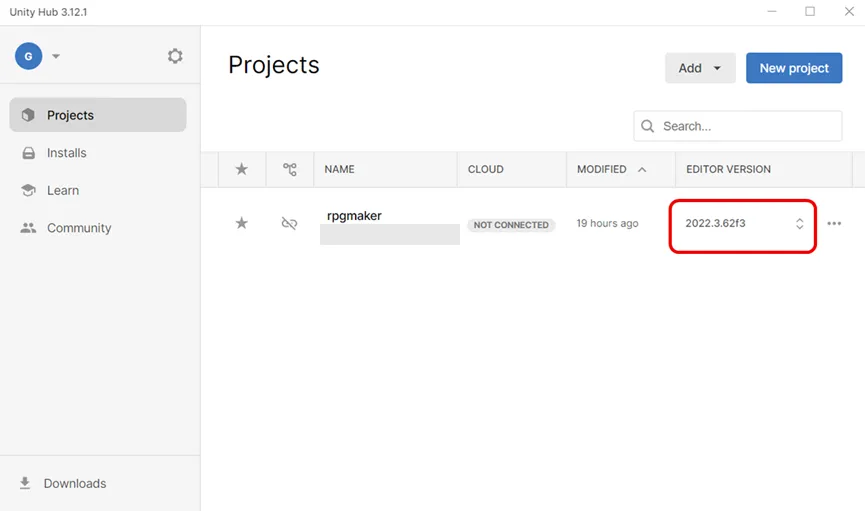
- In Unity Hub, select 2022.3.62f3 from the "Editor Version" column of the relevant project.

b. If you are using the Epic Store version:
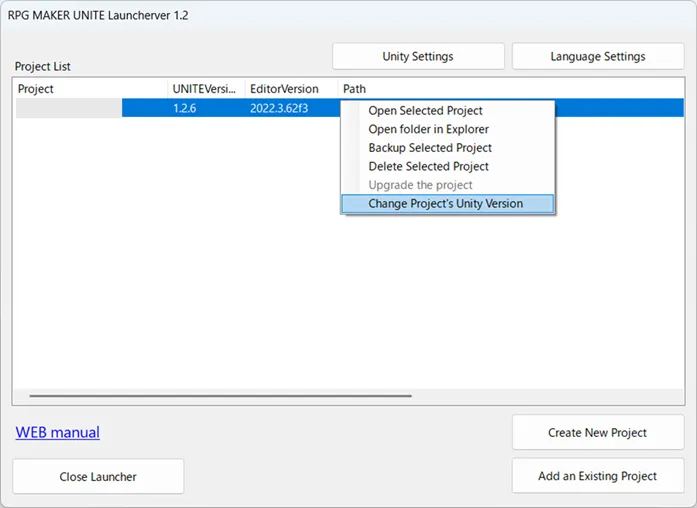
- Right-click the relevant project.
- Select "Change Project Unity Version".
- In the dialog that appears, select 2022.3.62f3 as the Unity Editor version to change to.

3. Launch the project.
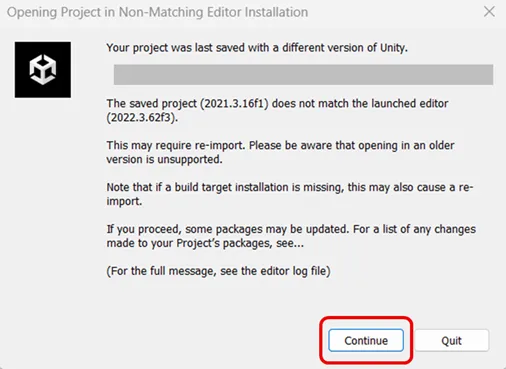
If the dialog shown below appears, select "Continue". (This dialog confirms that the Unity Editor version has been changed.)

By following the steps above, you can change the Unity version for UNITE.
Thank you for your continued support of RPG MAKER UNITE.